Friday, October 23, 2015

Mind Refreshing Puzzle - A boy goes to his grand parents house.


Mind Refreshing Puzzle - A boy goes to his grand parents house.

A boy goes to his grand parents house. There he either does   yoga in the morning / plays tennis in the evening / does neither. 


However he does not do both on the same day. 

We know that 22 days he did either 1 activity. 

24 mornings he did nothing. 

12 evenings he did nothing. 

How many min days did he stay there to have done this? 


Answer

We get three equations: 

1. Yoga + Tennis =22 
2. Tennis + Nothing=24 
3. Yoga + Nothing = 12 

We are able to conclude: Yoga = 5, Tennis = 17, Nothing =7. 

Hence the min days: 5+17+7=29 days

Wednesday, April 22, 2015

Git - Delete a branch from local OR remote


Delete a branch from local OR remote


To remove a local branch from your machine:
git branch -d the_local_branch
To remove a remote branch from the server:
git push origin :the_remote_branch

Sunday, October 26, 2014

Throw 500 internal errors on browser.

Hi Readers,

You need to replace your http error tag in web.config file with the following line


<httpErrors errorMode="Detailed" existingResponse="PassThrough">


This line will help IIS to throw the error on browser instead of showing custom page.

Thursday, September 18, 2014

Create new login like "sa" in sql server management studio

a)      Open you sql server management studio
b)      Connect using Window authentication

c)    Right click on “security - > New - >Login..” as shown in below figure


        d)      This will open up with a new popup as shown below:
1)      Enter Login name
2)      Check second radio button “SQL Server authentication
3)      Select the Default Database from the dropdown shown bottom of the page.
4)      Click Ok


      e)      Select “User Mapping” from the left menu and select the database for which you are creating new login
And then select the role membership I selected “Db_owner” in my case

f)     Next Step is “Status” from the left menu and enabling the account as shown in the figure

g)    The Final Step is restarting the SQL server instance by right clicking on instance name and restart


h) That's is. You are done with creating new login. Open New Instance and login using new credentials.

Some basic commands of GIT

I started learning git and using git in my current project so sharing few git command that are very basic everyone,

You can enjoy learning git commands:

a) For add a file:
            git add -A
b) For Commit:
 git commit –a –m “Comment”
c) For Push:
                Git push origin csn-4973
d) Merge Tool:
                Git mergetool –y
e) For Update:
       Go to Parent Branch :
git checkout ParentBranchName
git fetch
git reset – hard origin/ParentBranchName
f) Goto Child branch
                Git checkout ChildBranchName
                Git fetch
                Git reset – hard origin/ChildBranchName
g) Merge Command
                Git merge ParentBranchName (Parent Branch: This will down merge parent branch changes to child)

h) Pull command:
Git pull origin ParentBranchName

i) Revert Of Revert :
Git checkout prod-child-branch
Git pull origin ccid-42
Git revert SHA-CODE
Git Reset HEAD
Git push origin prod-10892
j) Save Local Changes to STASH:
             Git stash “Comment”
k) To Get All Stash changes:

             Git Stash apply


Happy Coding!!!!

Thanks ..

Tuesday, September 2, 2014

Git command to check the difference of local and remote server

When you start using Git, you will require to learn git commands as soon as possible and this is the command which you will be using most of the time to check the changes made to your local directory and this command will show you the new added files to repository

git Status

Happy Coding!!!

Monday, September 1, 2014

Disable Enter key using javascript code

Here is the function to disable Enter keys using javascript code,  you have to paste this code and call this javascript method from your window onload method or using Jquery ready methods:


function DisableEnterKey(e) {
    var key;

    if (!e) {
        e = window.event;
    }

    if (e.keyCode) {
        key = e.keyCode;
    }
    else {
        key = e.which;
    }

    return (key != 13);
}


Happy Coding :) !!

Set focus on first visible element using Javascript

Here is the Javascript code, you can use to set the focus of cursor on first visible element of the page.


function SetDefaultFocus()
{
    try
    {
        //loop will work for each form on the page
        for (f=0; f < document.forms.length; f++)
        {
           // for each element in each form
            for(i=0; i < document.forms[f].length; i++)
            {
              // if it's not a hidden element and it's not disabled
              if (document.forms[f][i].type != "hidden" && document.forms[f][i].disabled != true)
              {    
                    document.forms[f][i].focus();
                    return;
              }    
            }//eof sub-for  
        }//eof main for
    }
    catch(e)
    {
     
    }
}

Only you have to call this method on window onload or in jquery ready methods, This will automatically set the focus to that position.

Happy Coding!!

Sunday, August 31, 2014

Adding Facebok Login / Like / Logout button to Blogger / Website.

All the steps are same for adding facebook plugins like Like button / Login-Logout button , Comment Box etc. Only there is one step difference

Below are the steps with screenshot to embed the buttons on Blogger. 

Step 1 & Step 2:  Open your blog and log-in into it. Then you will see "Templates" menu in the left, Click on it and the step 2 is click on "Edit HTML" as shown in below screenshot:


Step 3:  Clicking on Edit HTML, We need to add namespace "xmlns:fb='http://ogp.me/ns/fb#'" as highlighted in below image. Once you add the namespace, Click on "Save Template" as highlighted.


Step 4: Once you save the template, click on "Layout" menu(3rd last) in the left menu list.
             This will open up a page as shown in below screenshot.
Click on "Add a Gadget" button wherever you wish to add facebook plugins. 


Clicking on "Add a Gadget" will open up a popup with multiple option of Gadgets as shown below:

from this popup, we have to select "HTML/Javascript" which is at 3rd last position in above screenshot.
This will further open up a popup as shown below, where we need to add below code snippet:

<div id="fb-root"></div>
<script>(function(d, s, id) {
  var js, fjs = d.getElementsByTagName(s)[0];
  if (d.getElementById(id)) return;
  js = d.createElement(s); js.id = id;
  js.src = "//connect.facebook.net/en_US/sdk.js#xfbml=1&appId=694894273921188&version=v2.0";
  fjs.parentNode.insertBefore(js, fjs);
}(document, 'script', 'facebook-jssdk'));</script>


<div class="fb-like"   data-layout="standard" data-action="like" data-show-faces="true" data-share="true"></div>


The above code is for "Like" button only, if you want to add Login/Logout or comment plugin, you only need to change the highlighted div from above step only.

<div class="fb-like"   data-layout="standard" data-action="like" data-show-faces="true" data-share="true"></div>

You can get other plugins code from https://developers.facebook.com/docs/plugins
Step 5:
After saving this, popup will be closed. Then click on "Save Agreement" as shown in below figure.


Step 6: Yipeee!!! you are done, this will show you Facebook like button.


Friday, August 29, 2014

Create facebook app for your website in 10 simple steps!

Hi,

Facebook has changed the way we create apps for our website so i am writing this for those people who are having issues, problems in created new app and publish them on their website.

Step1- Login : You must be having a facebook account, so that you can log in into https://developers.facebook.com/ if you are not having facebook account you can sign up on their website.


Step 2: From the header of Facebook developer home page, Click on "Apps", you will see below screenshot. Out of which, you need to select "Create a New App" if you are creating new app for four website.

If you want to add test application, the select the appropriate application from the list of applications.


Step 3: Once you click on "Create a New App", you will see below popup where you have to enter three     things :
   a) Display Name : Your application or website name. 
b) Namespace: To maintain the uniqueness around the world and this should be in lower letters and no special character or number.
c) Select "NO" in third option because we are creating a new application
d) Choose the category where our website related to like Education, Entertainment and Sports etc as shown in the next image.


Step 4: Once you click "Create App" from popup then you will get Capcha confirmation which will verify if you are human :P


Step 5: Clicking on Submit will create an app for you and show you the Dashboard, This dashboard will show the App ID and App Secret which will be useful when you embed facebook plugin to your website.

In this step, there is an important thing to remember that you first need to create platform, then only you can enter App Domains and save all the information. So first click on the "+ Add new platform" and show you the next image screenshot.


Step 6: Click on "+Add new platform" will open popup like this. As we are creating website app, so i am going to select website from the below popup

Step 7
Here you can enter your website URLs, and remember one thing here is URL should be like :
http://gouravkhanna.blogspot.in not like "http://www.gouravkhanna.blogspot.in"

And remember to add Contact Email Address.


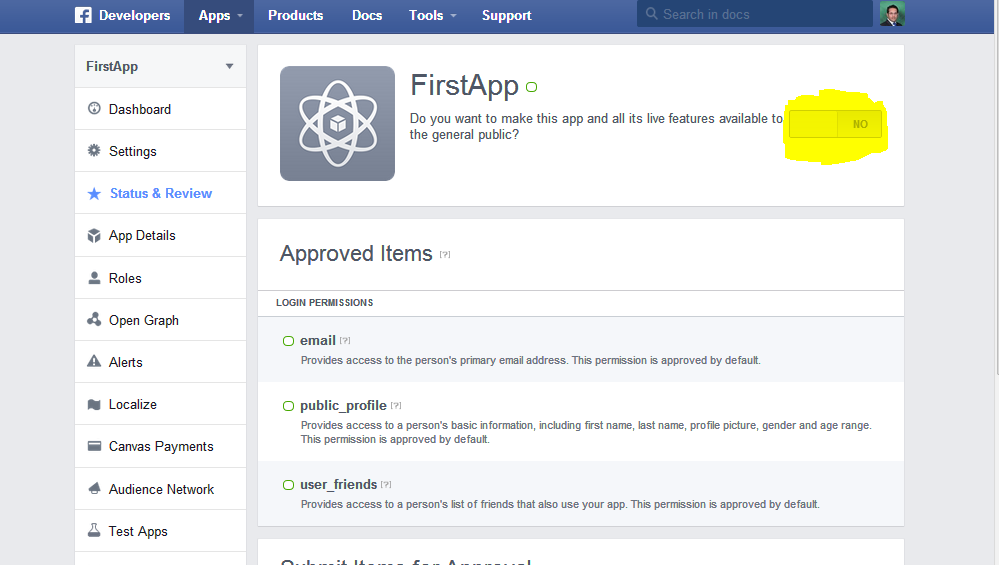
 Step 8: Till the last step, This app was not live or public. So to make it live or public so that we can use this in our application, we should on the highlighted area. Once you click on it, It goes LIVE.


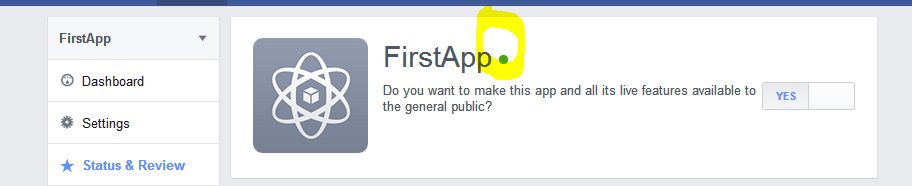
Step 9: It will show LIVE as green signal as shown in below screenshot.


Step 10 : Yipee !!!

Finally you are done with creating your first facebook app. you can use app ID to embed the plugins on your website.

If any question, Do comment in the below box.


Thursday, August 28, 2014

Write a program to print pyramid using star(*) using c#

Hi Coders,

When i was in my college days, i have faced this situation multiple time that we have to write a program to print * half pyramid. So i am explaining code here.

Hope this will help you out:

Output:


The code snippet for this output is :


The Source code is : You need to open new project -> Console application -> Name it.

In that project there will be a program.cs file where you can replace the code and see the output

using System;
using System.Collections.Generic;
using System.Linq;
using System.Text;
using System.Threading.Tasks;

namespace ConsoleApplication1
{
    class Program
    {
        static void Main(string[] args)
        {
            int i, j, rows;
            Console.Write("Enter the number of rows: ");
            rows = Convert.ToInt32(Console.ReadLine());
            for (i = 1; i <= rows; ++i)
            {
                for (j = 1; j <= i; ++j)
                {
                    Console.Write("* ");
                }
                Console.Write("\n");
            }
            Console.ReadLine();
        }
    }
}

Happy Coding :)

Wednesday, August 27, 2014

Software Engiineer - Interview Process at HCL Technologies

Hi Job Seekers,

HCL Technologies is a great company to work and for those who are looking for Onsite Jobs.

The complete interview process can take a day, couple of days or a month also, that all depends on the project requirement.

Total number of rounds depends on the years of experience and type of interview, IF

Walk-in : 4 Rounds,
Scheduled : 3 Rounds

Here are the rounds and sample question for software engineer applying for .net position.

1) Written Test
2) Technical Discussion
3) Managerial Discussion
4) HR Round

Sample question related to all rounds :

1) Written Test : This will include objective questions and are related to c/c++/.net/MVC/XML/Javascript
   a) What is .net framework?
   b) Difference between string and stringbuilder
   c) Difference between abstract and interface
   d) XML stands for
   e) Difference between JavaScript and j query
   f) What is constuctor and couple of question was on constuctor
   g) How to kill user session explicitly?
   h) Range validator control handles which datatypes?
   i) What is MVC stands for?
   j) What is $ in jquey?

2) Technical Discussion : Once you cleared with first round, There will be a technical discussion with one experience technical person. Question are mainly depends on the project requirement like if they are using MVC or .net or sql server, then according to that question will come to you. I am just sharing with you my personal experience.

This is the link which you must know before entering the door of interview : http://stackoverflow.com/questions/365489/questions-every-good-net-developer-should-be-able-to-answer?answertab=active#tab-top

I am giving you one more reference for .net interview related ebooks. You can download and study and can clear any .net interview.

http://gouravkhanna.blogspot.in/2012/03/important-for-net-developers.html

3) Managerial Discussion : Once you cleared the technical discussion, there will be one Managerial round, that will be taken by project manager and he/she is the guy who will be handling the complete project.

4) HR Round: Finally you are done with all technical stuff. Its the time for negotiation and salary hikes. you can ask them maximum of 50% salary hikes as they are not good pay masters but they are good at employment around the world and on stability..

Yippee!!! you are done..


All the best!!!


Tuesday, August 26, 2014

Software Engineer/Sr. Software Engineer Interview Process at Cvent:

Software Engineer/ Sr. Software Engineer Interview Process at Cvent:

The complete process will take 1 week time in interviewing a candidate and Cvent is having a good interview process for selecting a candidate.

Ratio of selecting a candidate is 18:1. Means out of 18 candidate,1 will be selected so think if you got selected, you are best candidate for that position.

And if you are not selected, Don't be Sad. There are lots of other good companies for you.

The rounds in interview will be:

1) Machine Test : This test will be around 45 min and contains two programming question and out of which you need to implement only one using any language c,c++,c# and Java in 45 mins.
Questions : a) Implementation of stack
   b) Implementation of Queue
           c) Implementation of And/Or Operator using two numbers


2) Technical Rounds : If you will clear first round then that will be followed by multiple technical round, because they are having 360 degree recruitment process so 3-4 technical rounds with different different technical persons will happen after machine test.
Question are mainly related to technologies on what you are applying for like if you are interviewing for .net position then question will be related to .net/JavaScript and jQuery only + every round will contain some coding questions like :
a) First largest number from given array
b) 2nd biggest number from array
c) array operation logic like sorting
d) print * in multiple rows.

3) Onsite Technical Round: After these 5 round, There will be one onsite technical managerial round. That round will also contain aptitude question and some logical puzzles.


4) HR Round : After you clear all Technical round, HR round will happen. Cvent is good paymaster as per the industry standards. So here you will get good hike and Environment is also cool here and as per my view this is a good company to work with.

All the Best :)

Monday, August 25, 2014

Set the value of one Textbox, Whenever the other textbox value changes using Jquery

Hi Everyone,

I am writing this article to help those who are very new to jquery,

Requirement is : Need to update one input box on changing the text in other text box.

Solution:  I am assuming that you know the basic of html and javascript.


Here is the text version of the code. you just have to copy the code and paste this text in notepad file and save that file as html.
------------------------Beginning of Code------------------------------------------------
<!DOCTYPE html>

<html xmlns="http://www.w3.org/1999/xhtml">
<head runat="server">
    <script src="//code.jquery.com/jquery-1.11.0.min.js"></script>
    <script type="text/javascript">
        $(document).ready(function () {
            $("#FirstInput").on('keyup', function () {
                $("#SecondInput").val($(this).val())
            });
        });
    </script>
    <title></title>
</head>
<body>

    <div>
    First InputBox <input type="text" id="FirstInput" value="" /> <br />
    Second InputBox <input type="text" id="SecondInput" value="" /> <br />
    </div>

</body>
</html>
------------------------------End Of Code-----------------------------------------------

After running this code, the output will be :


As you can see if i enter "G" in First InputBox the value will automatically be reflect in 2nd InputBox.
The Jquery Code which is doing all this is :

 $("#FirstInput").on('keyup', function () {
                $("#SecondInput").val($(this).val())
            });

$ is inbuild keyword to access elements using jquery and every function that need to be registered on element are to be enclosed in ready method of jquey as provided in code.

Happy Coding :)

Friday, February 21, 2014

Implementation of loaded in Ajax

Here is a script which only require div tag that needs to be displayed once ajax request will be fired:


<script type="text/javascript">
    // Get the instance of PageRequestManager.
    var prm = Sys.WebForms.PageRequestManager.getInstance();
    // Add initializeRequest and endRequest
    prm.add_initializeRequest(prm_InitializeRequest);


    // Called when async postback begins
    function prm_InitializeRequest(sender, args) {
    // get the divImage and set it to visible
    var panelProg = $get('divImage');
    panelProg.style.display = '';


    // Disable button that caused a postback
    $get(args._postBackElement.id).disabled = true;
    }


  </script>

Thursday, February 20, 2014

Hello world android tutorial

Hi Everyone,

Few days back i have started working on android and i want to share the link of phone gap and android hello world tutorial with all of you :


http://docs.phonegap.com/en/1.9.0/guide_getting-started_android_index.md.html

Regards,
Gaurav

Thursday, October 31, 2013

Tips, Shortcuts & Features for the .NET IDE


Reference : MSDN.

Visual Studio .NET has quite a lot of useful options. Below are the compendium of short cuts, tips, features for the Visual Studio .NET IDE.
There is no doubt that by learning the keyboard shortcuts for an IDE you can increase your productivity tenfold. So here is a list of useful hints that I gathered.

1.       Multiple copy/pastes

Ctrl+Shift+V cycles through the clipboard ring. You can copy/cut multiple times from one area of code, then go to another area and paste them one after another.

2.       Vertical block selection

Press Alt and then select the area you want with your mouse.

3.       Incremental search

To incrementally search for text as you type, first press Ctrl+i. Then type the word you want to search. Hit backspace to clear a character and enter to finish. Pressing F3 after this will work as usual, i.e. search for the next occurrence of previous search.
Ctrl+i - Ctrl+i works like F3.

4.       Previous cursor positions

Ctrl+- i.e. Ctrl + Hyphen. This cycles you through the code positions you visited.
Ctrl+Shift+- to navigate in the opposite direction.

5.       Drag and drop code snippets

The Toolbox (Ctrl+Alt+X) window has multiple tabs. You can drag and drop code onto this window and copy it elsewhere. Some tabs do not allow dropping code into them; those that allow will have the appropriate icon. The General tab works for me.

6.       Matching brace/comment/region/quote

Ctrl+] takes you to the matching brace. It also takes you to the matching comment, region or quote depending on what is at the cursor now.
7.       Change IDE Startup page
When you load your .Net IDE, the default behavior is to load the Start Page. However for many developers, this is just and extra step to open a project, which also happens to load the Internet Explorer into memory. In the Option dialog, under Environment -> General Page, you are able to change the behavior to one of five options as below in screen shot.  

8.       Closing/Showing support windows

There are a bunch of necessary/useful windows in the Visual Studio IDE like
Properties (F4),
Solution Explorer (Ctrl+Alt+L),
Output Window (Ctrl+Alt+O),
Task List (Ctrl+Alt+K) etc.
However, they take up a lot of space. An easy way around this is to use the auto hide feature.
Open the window you want. Right click on its title and choose Auto Hide. The window will dock in whenever your mouse is not hovering over it.

9.       Tab groups - group code editor windows

If you have many source code windows open, you can group them logically using tab groups. Right click the tab of the code window and choose New Horizontal Tab Group. This will move the window into a split window, allowing you to see both files. You can add more files to this new tab group and also move files back to the previous group by choosing Move To Previous Tab Group.

10.   Track things you have to do with Task List

The Task List window (Ctrl+\,Ctrl+T) allows you to keep track of the things you have to do. Right click on the Task List window and choose Show Tasks|All to see a list of tasks. Ctrl+Shift+F12 to cycle through your list of tasks.
By default, comments marked with a TODO will appear in the task list.

11.   Edit Task List Comment Tokens

You can add your own set of comment tokens (like the TODO comment token). Goto Tools|Options|Environment|Task List|Comment Tokens and make your changes. You can change the priority appearance of each comment token too.

12.   Add Task List Shortcut

Add a shortcut to the task list with Ctrl+K, Ctrl+H. This will add the current line to the task list.

13.   Record and play temporary macro

Ctrl+Shift+R to record a new temporary macro. Press Ctrl+Shift+R to stop recording. Ctrl+Shift+P to play the recorded macro.
This works similar to *recording* in Vim. If you think you are going to be repeating a set of keyboard keys, then record them once and play them each time after.

14.   Auto-complete

Press Ctrl+Space or Alt+RightArrow to auto-complete the word. Intellisense suggestions may pop up a window if there is more than one possibility.

15.   Intellisense suggestions window

Press Ctrl+Shift+Space to bring up the intellisense suggestions window. When giving parameters for functions, I often need to escape the suggestions window to check another part of code. To bring it back, I used to delete a comma and then type it again; but this is easier.

16.   Word wrap

Ctrl+R Ctrl+R
or
Tools|Options|Text Editor|All Languages|General|Word Wrap
If you want to set this option for only one language, then choose the appropriate language instead of All Languages.

17.   Line numbering

Tools|Options|Text Editor|All Languages|General|Line numbers.
If you want to set this option for only one language, then choose the appropriate language instead of All Languages.

18.   Open Web Browser in IDE

You can open web browser in your IDE using Ctrl+Alt+R. or choose View|Other Windows|Web Browser.

19.   Favorites window

Your IDE also functions as a browser. To see your list of favorites, press Ctrl+Alt+F or choose View|Other Windows|Favorites.

20.   Bookmarks

Bookmarks are available through Edit|Bookmarks. Bookmarks allow you to mark places in your code that you would want to come back to.
·         Create/Remove Bookmark - Ctrl+K, Ctrl+K
·         Move to next bookmark - Ctrl+K, Ctrl+N
·         Move to previous bookmark - Ctrl+K, Ctrl+P
·         Clear all bookmarks - Ctrl+K, Ctrl+L

21.   Code Formatting

·         Auto-format selection - Ctrl+K, Ctrl+F
·         Convert to lower case - Ctrl+U
·         Convert to upper case - Ctrl+Shift+U
·         Comment selection - Ctrl+K, Ctrl+C
·         Uncomment selection - Ctrl+K, Ctrl+U

22.   Outlining

I like this feature that allows me to hide code that is irrelevant to what I'm currently working on.
·         Fold/Unfold the current code block - Ctrl+M, Ctrl+M
·         Unfold all - Ctrl+M, Ctrl+L
·         Stop outlining - Ctrl+M, Ctrl+P
·         Fold all - Ctrl+M, Ctrl+O

23.   Build and Debug

·         Build - Ctrl+Shift+B
·         Run - Ctrl+F5
·         Debug - F5

·         Cycle through build errors - F8